
Map Overlays with Allmaps
The BTAA Geoportal connects to Allmaps, a free tool that lets you place scanned maps over modern maps. This process is called georeferencing.
You can use Allmaps to create, view, and edit Map Overlays right from the Geoportal. Allmaps works with map images that use the IIIF standard.
Find Maps to Georeference
Section titled “Find Maps to Georeference”-
Visit the BTAA Geoportal and search for a place or topic. You can also leave the search box blank to browse everything.
-
Under Resource Class, select Maps.
-
Open the Map Overlay filter and select False to find maps without an Allmaps overlay.
-
Choose a map and open its resource page.
Create a Map Overlay
Section titled “Create a Map Overlay”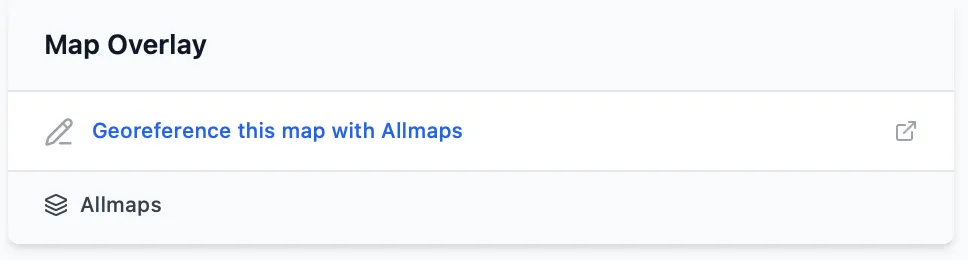
Before georeferencing, the Map Overlay section provides a link to open the map in the Allmaps Editor.
- Find the Map Overlay section on the resource page. Click Georeference this map with Allmaps to open the Allmaps Editor.
- Follow the instructions in Allmaps to match locations on the scanned map with locations on a modern map.
- Return to the Geoportal and refresh the resource page to see your new overlay.
View and Edit Map Overlays
Section titled “View and Edit Map Overlays”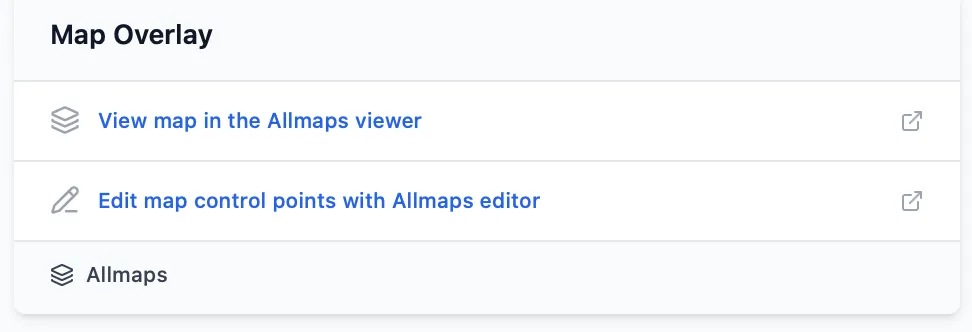
After georeferencing, the Map Overlay section provides separate links for viewing the overlay and editing its control points.
To find maps that already have overlays, select True under the Map Overlay search filter.
Open a resource page and select the Map Overlay tab to view the map. The built-in Allmaps Viewer lets you zoom, move around, and adjust the transparency of the overlay.
The Map Overlay section on the resource page also includes links to:
- View map in the Allmaps viewer
- Edit map control points with Allmaps editor
Learn More
Section titled “Learn More”- Allmaps: Tools and instructions for georeferencing maps.
- Leventhal Map & Education Center: A step-by-step tutorial for georeferencing historical maps.